19

Until yesterday evening, I was able to connect to my server from my local machine. Now, I get the following error:

A connection was successfully established with the server, but then an error occurred during the pre-login handshake. (provider: SSL Provider, error: 0 - The wait operation timed out.) (.Net SqlClient Data Provider)

Note, I can log on to the actual server with no problem.

Yesterday, I installed IIS on my machine and set up a site using my IP address - don't know if this has anything to do.

I did come across this article, followed the steps, but didn't seem to help.

http://escapekeys.com/microsoft-sql-server-error-64-a-connection-was-successfully-established-with-the-server/89

I also went through the following article, changed TC/IP settings, restarted, but nothing.

http://blog.sqlauthority.com/2009/05/21/sql-server-fix-error-provider-named-pipes-provider-error-40-could-not-open-a-connection-to-sql-server-microsoft-sql-server-error/

Started trying suggestions from comments too but stopped when I realized I might be messing things up more.

So, why is this happening / how can I fix?

JoshBerke
  • 189
Rivka
  • 353
  • 2
  • 4
  • 12

14 Answers14

14

An answer propsed here: http://social.msdn.microsoft.com/Forums/en-US/vssetup/thread/2d11b6f9-3ada-4682-b643-c721a97af4ba

Sick of the problem? Dont know or care what winsock is or any of this low level crap means.

Go to a command prompt

do this

netsh Winsock reset

go on with your life and be happy.

Watki02
  • 637
5

In my situation, I had a content filter/proxy called Covenant Eyes that was the likely cause.

I tried repairing the install of SQL server 2012 and it crashed the install and still did not fix the problem. As soon as I generated an uninstall code and uninstalled the filter, I could connect; I did not even have to reboot.

Check for proxies and content filters on the machine and disable them!

Watki02
  • 637
3

In my particular setup, I was using storing session data in a custom database, I also had the data encrypted (Encrypt=True) via the connection string, removing this fixed the problem!

I suspect though that the data isn't being ssl encrypted as a result though, not much of an issue until we add more web servers though!

1

I had the same issue, only for my local instance, only for Azure Data Studio (No problem with SSMS). It was a certificate problem. Check, in SQL Server Configuration Manager:

  • SQL Server Network Configuration, right click on Protocols
  • In Flags tab, Force Encryption = NO
  • Restart SQL SERVER service
Jean Noel
  • 111
  • 3
1

I did a system restore and I'm able to connect now.

Rivka
  • 353
  • 2
  • 4
  • 12
1

None of these solutions worked for me. What did work was the following:

https://stackoverflow.com/questions/3270199/a-connection-was-successfully-established-with-the-server-but-then-an-error-occ/44703629#44703629

  • In SQL Server Configuration Manager

  • Select SQL Server Services

  • Locate the troubled service and view Properties

  • In the Log On tab, change the "Built-in account" to "Network Service"

Disclaimer: This was on my local dev PC so i had no security concerns doing so.

1

This problem can be related to a firewall in the middle that is doing SSL inspection.

I Suggest you either try again using another connection not doing SSL inspection, or ask your firewall admin to create an exemption for the source and/or destination you are connecting to,

Cheers!

0

You might have recently changed your user connections setting in the SQL server.
You have to bring up your instance in single-user mode by adding -m in startup parameter. Then you have to change the user connections settings by below commands:

USE AdventureWorks2012 ;  
GO  
EXEC sp_configure 'show advanced options', 1;  
GO  
RECONFIGURE ;  
GO  
EXEC sp_configure 'user connections', 325 ;  
GO  
RECONFIGURE;  
GO  
kenlukas
  • 3,404
OFFICE
  • 1
0

In my case:

  • SQL Server on my local machine on ubuntu docker image
    • connecting via localhost port 1433.
  • Connect sucessfully to server from SQL Server Management Studio
  • Unable to connect from application. Same exception as in OP:

A connection was successfully established with the server, but then an error occurred during the pre-login handshake. (provider: SSL Provider, error: 0 - The wait operation timed out.) (.Net SqlClient Data Provider)

After trying almost everything from this port, I have changed the database host from localhost to 127.0.0.1 and it started working again.

Not sure if this exactly fixed the issue, but after this change it started working. But when I changed it back to localhost it still worked (no exception was thrown).

0

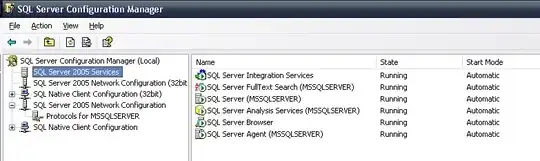
Open SQL Server Configuration Manager, and make sure the SQL Server service is running:

SQL Server Configuration Manager - Services

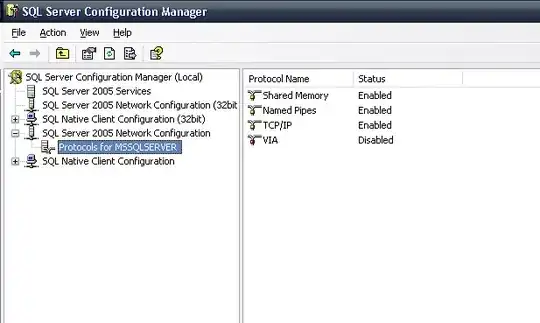
and configured to allow TCP/IP connections:

SQL Server Configuration Manager - Network Configuration

0

This error occurred after the installation of a program which changes the Internet Protocol settings of your computer. Recently I got the same issue after the installation of Internet download manager because IDM has changed the IP settings that error comes so after uninstalling IDM from my PC and restarting the PC solve the problem.

So uninstall any application which has changed the Internet Protocol settings like Internet download manager.

jscott
  • 25,114
0

Sometimes this error comes due to overload of connections on SQL Server. So just change your DB to Single User and again change it to Multi user.

Or simply execute this query.

use master ALTER DATABASE DatabaseName SET SINGLE_USER WITH ROLLBACK IMMEDIATE ALTER DATABASE DatabaseName SET MULTI_USER

That solved my issue. :) Enjoy..!!

0

I was getting this error message on each workstation attempting to connect to SQL. All computers are connected to a domain. What I did to resolve this issue was:

1) Create domian\user name as a login in SQL Management Studio of the user logging in to the workstation. 2) TLS 1.0 was also preventing this access. Transport Layer Security TLS is a cryptographic protocol used to establish a secure communications channel between two systems. It is used to authenticate one or both systems, and protect the confidentiality and integrity of information that passes between systems.

In the registry of both computers we went to \HKEY_LOCAL_MACHINE\SYSTEM\CurrentControlSet\Control\SecurityProviders\SCHANNEL\Protocols\TLS 1.0\Server. We swap the values in the two subkeys.
After a reboot I tested again and was able to successfully establish a connection.

-2

We had the same issue. We checked everything including ping, telnet & RDP connectivity and at last realized that it started happening after our ISP has changed the route. After changing the route it started working.